
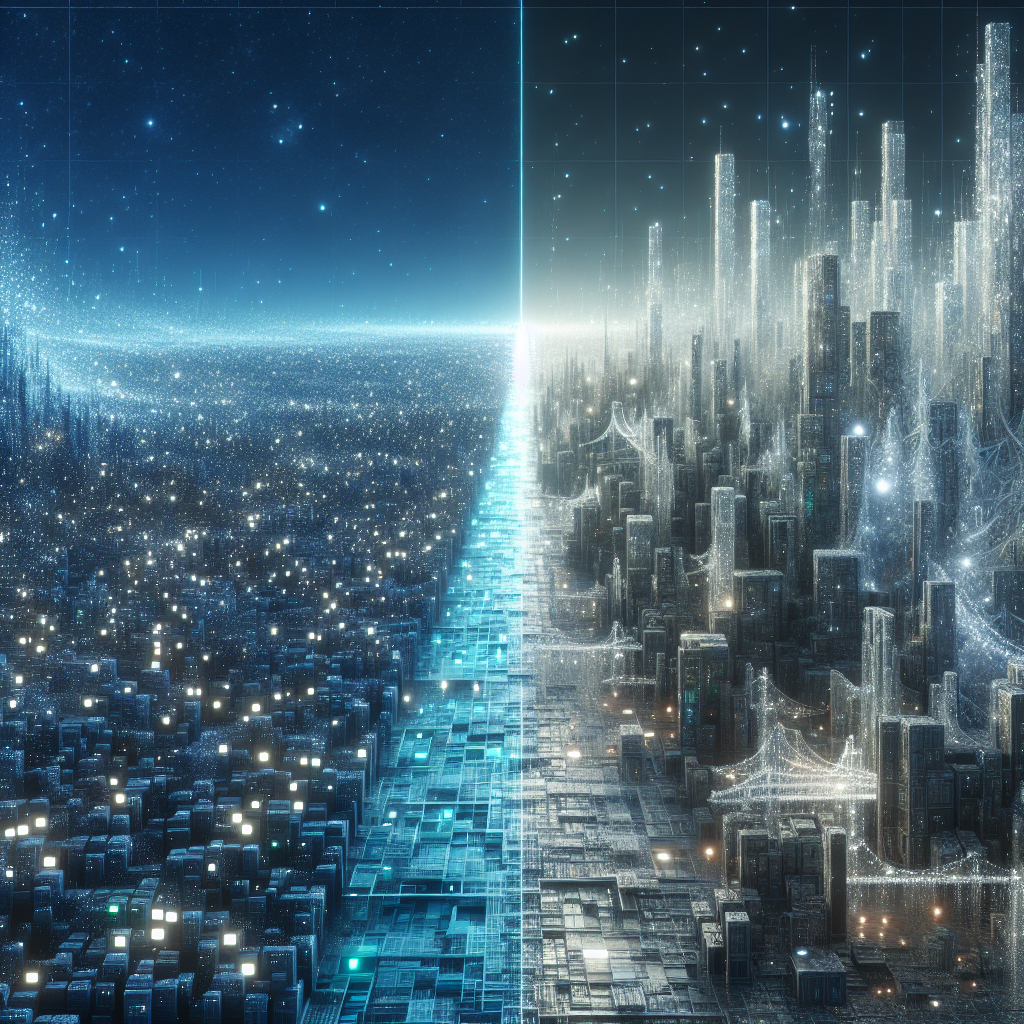
AI Upscaling vs Native Resolution: How Far Can Algorithms Go?
When a game, photo, or video looks oddly soft or strangely sharp, the real story often comes down to AI Upscaling vs Native Resolution. Modern GPUs, TVs, and photo tools all promise sharper images with artificial intelligence, but they do not always beat a clean native signal.
Understanding where AI upscaling shines—and where it falls apart—helps you choose the right settings for your monitor, TV, and editing workflow.
What Native Resolution Actually Means
Native resolution is the fixed grid of pixels a display panel physically has. A 4K monitor with 3840×2160 pixels always has that many pixels lit up, no matter what you feed it.
When a game or video runs at native resolution, the software renders or encodes an image that matches the panel’s grid exactly. No scaling. No guessing. Every pixel in the source maps 1:1 to a pixel on the screen.
Why native resolution looks so clean
With native resolution, sharp edges stay crisp because there is no interpolation. Text remains legible, fine patterns do not shimmer, and small UI elements keep their intended shape.
Example:
-
A PC game set to 2560×1440 on a 1440p monitor uses native resolution. The HUD, crosshair, and distant foliage all line up exactly with the panel’s pixels. Movement looks stable, and thin lines on weapons or UI remain predictable frame to frame.
Photos and videos behave the same way. A 24‑megapixel photo displayed at a size that matches the screen’s pixel grid will look clean and detailed, limited only by the original capture quality and compression, not by scaling artifacts.
What AI Upscaling Does Under the Hood
AI upscaling takes a lower‑resolution image or frame and uses machine‑learned models to invent extra detail as it scales up to a higher resolution. Instead of simple linear or bicubic interpolation, it uses patterns learned from large datasets.
The model looks at edges, textures, and even context to decide how new pixels should look. This is a form of ai image enhancement, but focused on increasing resolution.
Common examples:
-
A 1080p video stream upscaled to 4K on a modern TV using an AI processor.
-
A 1440p render in a game upscaled by DLSS, FSR, or XeSS to output a 4K image.
-
A 12‑megapixel phone photo enlarged to poster size using an AI upscaling tool in a desktop app.
The promise: near‑native sharpness with less rendering cost or from lower‑quality sources.
AI Upscaling vs Native Resolution: Key Differences
Both approaches aim to fill your screen with pixels, but they reach that goal in very different ways. Native resolution shows what was actually rendered or captured. AI upscaling reconstructs and sometimes invents detail.
Comparison table: sharpness, artifacts, performance
AspectNative ResolutionAI UpscalingPixel mapping1:1, no scalingMany‑to‑many, model predicts new pixelsSharpnessConsistent, accurate to sourceOften higher apparent sharpness, sometimes over‑sharpenedFine detailTrue to original dataCan hallucinate detail that was never thereTypical artifactsAliasing if resolution is lowHaloing, ringing, shimmering, ghosting, plastic texturesTemporal stability (motion)High, limited by original frame qualityCan flicker or crawl on thin lines or fine patternsLatency / performance costHigher GPU cost for high resolutionsLower render cost; extra cost on AI hardware or TV processorBest use casesCompetitive gaming, detailed editing, critical QCCasual gaming, streaming, consumer photo and video upscaling
Example: a 1080p movie on a 4K TV
A 4K TV has to scale a 1080p movie. With classic scaling, the result looks slightly soft. With AI upscaling, faces look sharper, text on signs becomes easier to read, and textures on clothing gain definition.
However, if you pause on a complex pattern like a brick wall, the AI version may show overly regular bricks or exaggerated edges that were not present in the original. Native resolution would never invent that pattern; it would simply show the actual pixels.
Sharpness: Real Detail vs Invented Detail
Sharpness is where AI Upscaling vs Native Resolution gets most confusing. AI upscaling often looks sharper at a glance, yet that sharpness is not always honest.
How AI creates apparent sharpness
Upscaling models enhance edges and textures. They detect boundaries between light and dark regions and boost contrast around them. They also use learned priors—typical shapes of eyes, hair, foliage, or text—to fill in gaps.
Example in gaming:
-
A 1440p render of a forest scene is upscaled to 4K using DLSS or FSR.
-
Leaves on distant trees appear more distinct than in a basic scaled image.
-
Grass blades look thinner, and tree bark has more micro‑texture.
The result can look closer to a native 4K render than a traditional upscale. For fast‑moving scenes, this perceived sharpness is often good enough that most players never notice the difference.
Where native sharpness still wins
Native resolution wins when you care about exact pixel‑level accuracy.
-
A 4K native screenshot from a game used as marketing art will preserve every tiny UI element and texture exactly as rendered.
-
A 4K native photo from a high‑end camera used in print will show true fine detail in hair, fabric, and foliage without invented patterns.
In side‑by‑side still comparisons, AI‑upscaled images can show slightly crunchy edges or a subtle halo around high‑contrast lines. Native resolution remains clean, with detail limited only by the underlying content.
Artifacts: What Can Go Wrong with AI Upscaling
AI upscaling can introduce artifacts that never existed in the original. These artifacts range from mild to very distracting, depending on the model, settings, and content.
Common AI upscaling artifacts
-
Haloing and ringing
Bright outlines around edges or faint ripples near transitions. For example, white subtitles over a dark scene may show a faint glow around the letters. -
Shimmering and crawling
Fine patterns like fences, wires, or distant railings may flicker as the model changes its guess from frame to frame. -
Plastic or waxy textures
Skin and fabric may lose natural grain and look overly smooth. This is frequent in aggressive ai image enhancement pipelines on TVs and smartphones. -
Ghosting in motion
Some temporal models use information from multiple frames. Fast motion can confuse them, creating trails behind moving objects.
Example: video streaming with AI upscaling
A low‑bitrate 1080p sports stream watched on a 4K TV with AI upscaling can look surprisingly sharp. Player names on jerseys may be more readable, and the pitch lines stand out clearly.
During fast camera pans, though, the white lines can shimmer or show slight double edges. When the view cuts to a crowd shot, faces in the background may look smudged or plasticky because the model is trying to reconstruct detail that the compression already destroyed.
Native resolution has none of these particular artifacts, but the same low‑bitrate stream will still look soft and blocky. The trade‑off becomes softness vs invented detail and occasional instability.
Performance: Frame Rates, Latency, and Hardware
The upscaling vs native debate is not just about image quality. It is also about performance and hardware limits.
Gaming performance trade‑offs
Rendering at native 4K is expensive. Many modern games struggle to maintain high frame rates at that resolution, especially with ray tracing enabled.
AI upscaling changes the equation:
-
The game renders internally at a lower resolution, such as 1440p or even 1080p.
-
An AI model reconstructs a 4K output frame.
-
GPU load drops, frame rate rises, and power consumption can decrease.
Example:
-
A single‑player action game on a mid‑range GPU runs at 35 fps at native 4K.
-
Switching to 1440p internal resolution plus AI upscaling to 4K pushes the frame rate to 60 fps.
-
Visual differences are minor during fast gameplay, especially at a typical living‑room viewing distance.
For competitive shooters, the performance gain can be even more important. Many players accept a small loss in clarity for higher refresh rates and lower input latency.
Video and photo processing performance
For offline tasks like photo enlargement or video remastering, AI upscaling trades time for quality.
-
A batch of 500 photos processed with an AI upscaler can take minutes or hours, depending on GPU acceleration.
-
A 2‑hour 1080p video upscaled to 4K using a high‑quality model may take several times its runtime to process.
Native resolution avoids this extra processing, but if your source is low‑resolution and you need higher‑resolution output, some form of upscaling is unavoidable. The question becomes whether the extra processing time from advanced AI models is worth the visible improvement.
Gaming: When AI Upscaling Is Good Enough
For gaming, AI Upscaling vs Native Resolution is often a practical choice between performance and clarity. The right answer depends on the game type, display size, and how critical visual precision is for you.
Single‑player and cinematic games
Story‑driven games, open‑world adventures, and cinematic titles usually benefit from AI upscaling.
Example scenario:
-
A console or PC outputs to a 4K TV.
-
The game supports DLSS, FSR, or XeSS.
-
At native 4K, frame rates hover around 40–45 fps.
-
With AI upscaling from 1440p, the game runs at a stable 60 fps.
From a normal couch distance, the AI‑upscaled image looks nearly as detailed as native 4K. Occasional artifacts in foliage or thin wires are rarely noticeable during typical gameplay. The smoother motion and lower input lag provide a clear benefit.
In this context, AI upscaling is more than good enough. It is often the recommended default.
Competitive and esports titles
For fast shooters and esports games, the trade‑offs shift.
-
Native resolution at 1080p or 1440p on a high‑refresh monitor offers extremely stable, clean edges and predictable motion.
-
AI upscaling to a higher resolution may add slight temporal instability on thin geometry or UI elements.
Example:
-
A 240 Hz monitor running a competitive shooter at 1080p native provides crisp, stable edges and minimal processing.
-
Turning on AI upscaling to simulate 1440p or 4K may introduce subtle shimmering on distant player silhouettes or weapon outlines.
For ranked play and tournaments, most players prioritize clarity and consistency over extra perceived sharpness. Native resolution wins here.
Practical gaming guidance
AI upscaling is generally good enough when:
-
You play single‑player or co‑op games.
-
You sit several feet away from a 4K TV or large monitor.
-
The game supports a mature, high‑quality AI upscaling implementation.
Native resolution remains preferable when:
-
You play competitive shooters or rhythm games where clarity of thin edges and temporal stability matter.
-
You use a smaller, high‑DPI monitor at close distance, where subtle artifacts are more visible.
-
You capture footage or screenshots for analysis, reviews, or marketing.
Photos: Enlarging Images with AI Upscaling
Photo workflows increasingly rely on AI upscaling for prints and crops. The core question is whether the enhanced image still looks natural.
Upscaling old or low‑resolution photos
AI upscaling tools can rescue older images that were never meant for large displays.
Example:
-
A 6‑megapixel photo from a 2007 compact camera is needed for a 4K slideshow.
-
Native resolution on a 4K display forces basic scaling, resulting in a soft, slightly blurry image.
-
An AI upscaling pass doubles or quadruples the resolution, sharpening edges and restoring apparent texture in hair and clothing.
From a typical viewing distance, the AI‑upscaled version looks significantly better. Slight texture hallucinations are acceptable because the original never had enough detail to begin with.
Critical photo work: portraits and product shots
For high‑end portrait or product work, the bar is higher.
-
Skin tones must remain natural, without plastic smoothing or fake pores.
-
Fine text on labels must stay accurate, not approximated.
Example:
-
A studio portrait shot on a 45‑megapixel camera is destined for a large print.
-
Native resolution already exceeds the printer’s needs.
-
AI upscaling may add micro‑texture to skin or hair that looks unnatural at close inspection.
In such cases, native resolution or modest non‑AI sharpening is usually preferable. If AI upscaling is used, it should be subtle and checked at 100% zoom for artifacts.
Practical photo guidance
AI upscaling is good enough when:
-
You are enlarging older or low‑resolution photos for on‑screen viewing or modest prints.
-
The original lacks detail already, and some invented detail is acceptable.
-
The audience will not inspect the image at pixel level.
Native resolution or very light enhancement is preferable when:
-
You deliver work to clients who will print large or examine details closely.
-
Accuracy of texture and text matters more than perceived sharpness.
Video: Streaming, Remasters, and Home Theater
Video pushes both native resolution and AI upscaling hard, especially with 4K and 8K displays.
Streaming services and TVs
Most 4K TVs already perform some form of AI upscaling on lower‑resolution content.
Example:
-
A 1080p streaming show on a 4K TV.
-
The TV’s processor uses AI upscaling to sharpen edges, enhance faces, and clean up noise.
The result is often more pleasing than basic scaling, especially for text overlays and UI. However, aggressive ai image enhancement can create overly smooth skin and exaggerated edges on animated content.
If your TV allows it, dialing back sharpness and enhancement while keeping resolution upscaling enabled often strikes a better balance.
Remastering older video
Professional remasters of classic films or shows increasingly use AI upscaling.
-
Old HD masters are upscaled to 4K using trained models.
-
Grain, lines, and textures are enhanced while trying to preserve the original look.
Done carefully, the remaster looks noticeably cleaner and sharper than the original HD release when viewed on a 4K display. Done poorly, it can look like a waxy, over‑processed version of the original.
Native resolution playback of a high‑quality 4K scan still represents the gold standard. AI upscaling is a tool to bridge the gap when only lower‑resolution masters exist.
Practical video guidance
AI upscaling is good enough when:
-
Watching 720p or 1080p streams on a 4K TV from a typical sofa distance.
-
Enhancing personal footage for YouTube or social media where the source is limited.
Native resolution is preferable when:
-
Viewing true 4K or higher masters on a calibrated display.
-
Performing color grading, VFX, or quality control where every pixel matters.
When to Choose AI Upscaling vs Native Resolution
Choosing between upscaling vs native depends on two questions:
-
How critical is visual accuracy vs performance or convenience?
-
How close will viewers sit to the screen, and how picky are they?
Quick decision rules
Use AI upscaling when:
-
You need higher frame rates in demanding games on 4K displays.
-
Your source video or photo is low‑resolution, and there is no higher‑quality original.
-
Viewers are at normal living‑room distances or using mobile devices.
Stick with native resolution when:
-
You work on competitive gaming, professional editing, grading, or print.
-
You own hardware capable of driving native resolution smoothly.
-
You frequently pause, zoom, or inspect still frames and fine details.
FAQ: AI Upscaling vs Native Resolution
Does AI upscaling always look better than basic scaling?
No. AI upscaling usually looks sharper than simple bilinear or bicubic scaling, but it can introduce artifacts such as halos, shimmering, or plastic textures. Whether it looks better depends on content type, model quality, and personal tolerance for artifacts.
Is AI upscaling better than native resolution for gaming?
For many single‑player games on 4K displays, AI upscaling offers a strong balance of image quality and performance. However, native resolution remains better for competitive titles where stability, clarity of thin edges, and predictable motion matter more than extra sharpness.
Can AI upscaling replace shooting or rendering at higher resolution?
AI upscaling cannot fully replace true high‑resolution capture or rendering. It can enhance lower‑resolution content and make it more usable on modern displays, but it cannot restore detail that was never recorded. For critical work, native high‑resolution sources are still essential.
Is AI upscaling safe for professional photo and video work?
AI upscaling can be part of a professional workflow, especially for archival material or when the original resolution is limited. It should be used carefully, with close inspection for artifacts, and generally avoided as a replacement for genuine high‑resolution capture when that is possible.
Should AI upscaling be enabled on a 4K TV by default?
For most viewers, enabling AI upscaling on a 4K TV improves the look of HD and SD content. However, it is wise to reduce overly aggressive sharpness and noise reduction settings. If you watch a lot of true 4K content, test both modes and choose the one that preserves natural detail without over‑processing.


Leave a Reply