
TikTok rewards videos that look clean, load quickly, and fit the screen perfectly. Getting the right TikTok video specs is the simplest way to avoid blurry uploads, awkward cropping, or audio glitches that sink watch time.
This guide walks through exact dimensions, formats, and settings that match how TikTok actually behaves on modern phones. Use it as a checklist before you hit upload.
Core TikTok Video Specs at a Glance
TikTok is built around vertical, full-screen video. If you upload the wrong shape or size, the app will letterbox or crop your clip.
Baseline TikTok video specs:
- Orientation: Vertical (portrait)
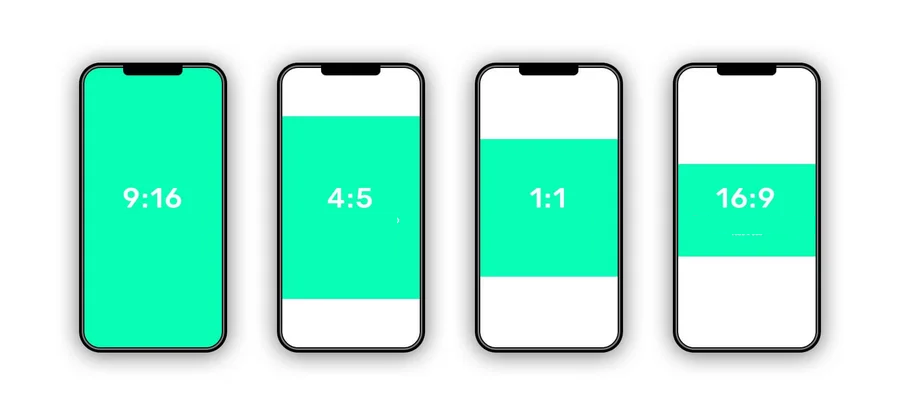
- Aspect ratio: 9:16 (preferred), 1:1 supported, 16:9 supported but not ideal
- Common resolutions:
- 1080 × 1920 (recommended)
- 720 × 1280 (minimum acceptable)
- 1440 × 2560 (high-res, use with care for file size)
- File formats: MP4, MOV (H.264 video + AAC audio)
- Video length: 3 seconds to 10 minutes (shorter usually performs better)
Example: A product demo recorded at 1080 × 1920, 9:16, MP4 with H.264 video and AAC audio will fill the screen cleanly on most devices, with no black bars or soft blur.
Aspect Ratio and Orientation: Filling the Screen
TikTok is designed for one-handed vertical scrolling. Horizontal video wastes space and pushes key details into tiny bands at the center of the screen.
Recommended aspect ratios
- Best: 9:16 (full-screen vertical)
- Acceptable but not ideal: 1:1 (square)
- Supported but awkward: 16:9 (horizontal)
If you upload a 16:9 landscape clip from YouTube, TikTok adds thick black bars above and below. Text overlays land closer to the center, and any on-screen captions can be harder to read.
To fix this, edit the clip into a vertical frame before upload. For example, crop the center of a 1920 × 1080 video into 1080 × 1920, then reframe the subject so the important action stays in the middle third of the screen.
Resolution, Bitrate, and File Size
Resolution sets how sharp your video looks. Bitrate controls how much data is used to store that detail. Balancing both keeps your video crisp without choking mobile data.
Recommended resolution
- Standard: 1080 × 1920 (9:16)
- Minimum: 720 × 1280
- High-res: 1440 × 2560 or similar, only if your editing workflow and connection can handle it
A simple rule: record and export at 1080p vertical unless you have a specific reason not to. Upscaling from 720p to 1080p does not add real detail, so start with a high-quality source.
Recommended video bitrate
TikTok does not publish official bitrate limits, but practical experience points to these ranges:
- 1080p vertical: 8–16 Mbps
- 720p vertical: 5–8 Mbps
Example: A 30-second 1080 × 1920 clip at 12 Mbps usually lands in the 45–60 MB range. That size is small enough to upload quickly on 4G while still looking sharp on modern screens.
If your video looks blocky after upload, lower motion or increase bitrate slightly. Fast-moving scenes, like sports or dance, need more bitrate than static talking-head clips.
File Format, Codecs, and Frame Rate
TikTok expects common mobile-friendly formats. Using the wrong codec can cause stutters or force extra compression.
Supported formats and codecs
- Container: MP4 or MOV
- Video codec: H.264 (AVC)
- Audio codec: AAC
Stick to H.264 + AAC in an MP4 container. Most phones and editors default to this combination.
Frame rate
TikTok supports standard frame rates:
- Recommended: 24, 25, or 30 fps
- Also supported: 50 or 60 fps
For most content, export at 30 fps. If you film slow-motion or high-energy action, 60 fps can look smoother, but expect slightly larger files.
Example: A tutorial filmed on an iPhone at 30 fps, H.264, AAC will upload cleanly and match what TikTok’s encoder expects, reducing the chance of ghosting or jitter.
Video Length and Safe File Sizes
TikTok allows long uploads, but viewer attention drops fast.
Length limits
- Minimum: 3 seconds
- Common sweet spot for reach: 8–30 seconds
- Maximum: 10 minutes (account- and region-dependent)
Short, tight videos usually earn more rewatches and completion rates, which the algorithm favors.
File size guidance
TikTok does not publish a simple MB limit for every region, but staying under 250 MB for most uploads keeps things safe and fast. Shorter clips can be much smaller.
Example: A 15-second vertical clip at 1080p, 30 fps, 10 Mbps typically falls near 20 MB and uploads almost instantly on a stable 4G connection.
Safe Zones, Text Placement, and UI Overlays
Even if your TikTok video specs are perfect, important details can still be hidden under interface elements. Captions, buttons, and the username overlay sit on top of your frame.
Keep content away from edges
On a 1080 × 1920 video:
- Avoid placing critical text or faces in the bottom 250–300 px where the caption, audio, and CTA buttons appear.
- Leave at least 80–120 px clear at the top to avoid overlapping with the profile and follow button.
Example: When adding a price tag to a product shot, position the text roughly in the middle third of the screen, slightly above center. That keeps it away from the bottom caption area and ensures it remains visible on different phone sizes.
If you edit on desktop, use a safe zone overlay that mimics TikTok’s UI. Many editors, including CapCut and Adobe Premiere Pro, offer templates that mark the blocked areas.
Audio Specs and Volume Levels
Strong audio is as important as sharp video. TikTok compresses and normalizes sound, so clean input matters.
Recommended audio settings
- Codec: AAC
- Sample rate: 44.1 kHz or 48 kHz
- Channels: Stereo
- Bitrate: 128–320 kbps (192 kbps is a safe middle ground)
Aim for consistent loudness. Peaks should sit around -6 dB, with overall loudness in the -16 to -14 LUFS range. That keeps your clip strong without clipping after TikTok’s processing.
Example: A voiceover recorded with a USB mic at 48 kHz, AAC, 192 kbps, normalized to -15 LUFS, will survive TikTok’s compression with clear speech and no harsh distortion.
Export Settings by Tool (Quick Examples)
Matching the right TikTok video specs is easier when your editor has a preset. If not, you can set the values manually.
Example: Export from CapCut
- Resolution: 1080 × 1920
- Frame rate: 30 fps
- Bitrate: 10–12 Mbps
- Format: MP4 (H.264 + AAC)
Example: Export from Adobe Premiere Pro
- Format: H.264
- Preset: “Match Source – High Bitrate” then adjust:
- Frame size: 1080 × 1920
- Frame rate: 30 fps
- Bitrate encoding: VBR 1-pass
- Target bitrate: 10 Mbps
These settings create a vertical, platform-friendly file that uploads quickly and looks close to what you see in the preview.
FAQ: TikTok Video Specs
What is the best resolution for TikTok videos?
The best resolution for most TikTok uploads is 1080 × 1920 in a 9:16 aspect ratio. This fills the screen on modern smartphones and keeps file sizes manageable.
Can you upload horizontal videos to TikTok?
Yes, TikTok accepts horizontal (16:9) videos, but they show with black bars and waste vertical space. Converting to a vertical 9:16 frame before upload usually improves watch time and engagement.
What is the ideal length for a TikTok video?
While TikTok supports up to 10 minutes, the ideal length for reach is often 8–30 seconds. Shorter clips encourage replays and higher completion rates, which the algorithm tends to reward.
Which format should you use for TikTok videos?
Use MP4 with H.264 video and AAC audio. This format is widely supported, compresses efficiently, and matches what TikTok’s encoder expects.
Why do TikTok uploads look blurry?
Blurry uploads usually come from low resolution, aggressive compression, or poor lighting. Recording at 1080 × 1920, using a bitrate around 8–16 Mbps, and shooting in good light greatly reduces softness after TikTok recompresses the file.


Leave a Reply